
最小化安装Debian Linux
本文详细记录了在VMware中安装Debian 12的过程,包括下载最小网络镜像、跳过繁琐的apt配置、手动配置DNS和网络源、安装SSH服务,并通过PowerShell远程连接。最后,作者使用一键换源脚本更新系统,并安装了一些常用工具,为后续使用做好准备。
目录
Vmware 安装Debian 12
下载镜像
<img src="https://www.reboots.top/api/file/75148698f60e4b05a49ba82d421b720a_0.7.jpg" alt="image-20240813230112785" style="zoom:50%;" />这里选择了最小的网络镜像,下载时间更短一些。一共也就600MB左右
跳过安装附加内容
在安装开始阶段会配置网络,这时候要保持网络链接。
随后在apt配置配置阶段断开网络,这个时间太长了,要一两个小时;
进行到apt配置时直接返回,然后安装grub引导即可。(后续手动配置apt)
安装完成重启
这时候开启网卡发现还不能上网,可以ping通ip
ping baidu.com无法解析,因为VMware的网关的DNS有问题这里手动配置一下
配置DNS
vi /etc/resolv.conf
修改nameserver的ip 为 114.114.114.114
配置临时apt源
我们还需要更改更多配置,但是vmware不能粘贴,下一步,配置好apt后安装ssh。
# 手敲
echo "deb http://mirrors.ustc.edu.cn/debian bookworm main contrib non-free non-free-firmware" > /etc/apt/source.list
apt update
安装SSH
# ssh 用来远程登陆,vim用来修改ssh的配置,curl一会用自动换源脚本会用到
apt install -y ssh vim curl
# 安装完成后修改ssh配置,允许root用户使用密码登录,虚拟机就不考虑安全性了
# 如果是服务器,需要换默认ssh端口防止被扫描,后续再关闭密码登录,使用公私钥对进行登录,安全性拉满。
vim /etc/ssh/sshd_config
# 修改完成重启 ssh服务
systemctl restart sshd
连接到Linux
你可以使用各种工具链接,这里我直接使用PowerShell连接,没有ssh命令的可能需要安装OpenSSH
ssh [email protected]
[email protected]'s password:
Linux debian 6.1.0-23-amd64 #1 SMP PREEMPT_DYNAMIC Debian 6.1.99-1 (2024-07-15) x86_64

The programs included with the Debian GNU/Linux system are free software;
the exact distribution terms for each program are described in the
individual files in /usr/share/doc/*/copyright.

Debian GNU/Linux comes with ABSOLUTELY NO WARRANTY, to the extent
permitted by applicable law.
Last login: Tue Aug 13 22:57:38 2024 from 192.168.6.5
root@debian:~#
大功告成?,接下来就简单了。
一键换源
# 换源
bash <(curl -sSL https://linuxmirrors.cn/main.sh)
# 更新已有的软件包到最新
apt update
apt upgrade -y
安装常用工具
apt install tree neofetch htop wget -y
?!
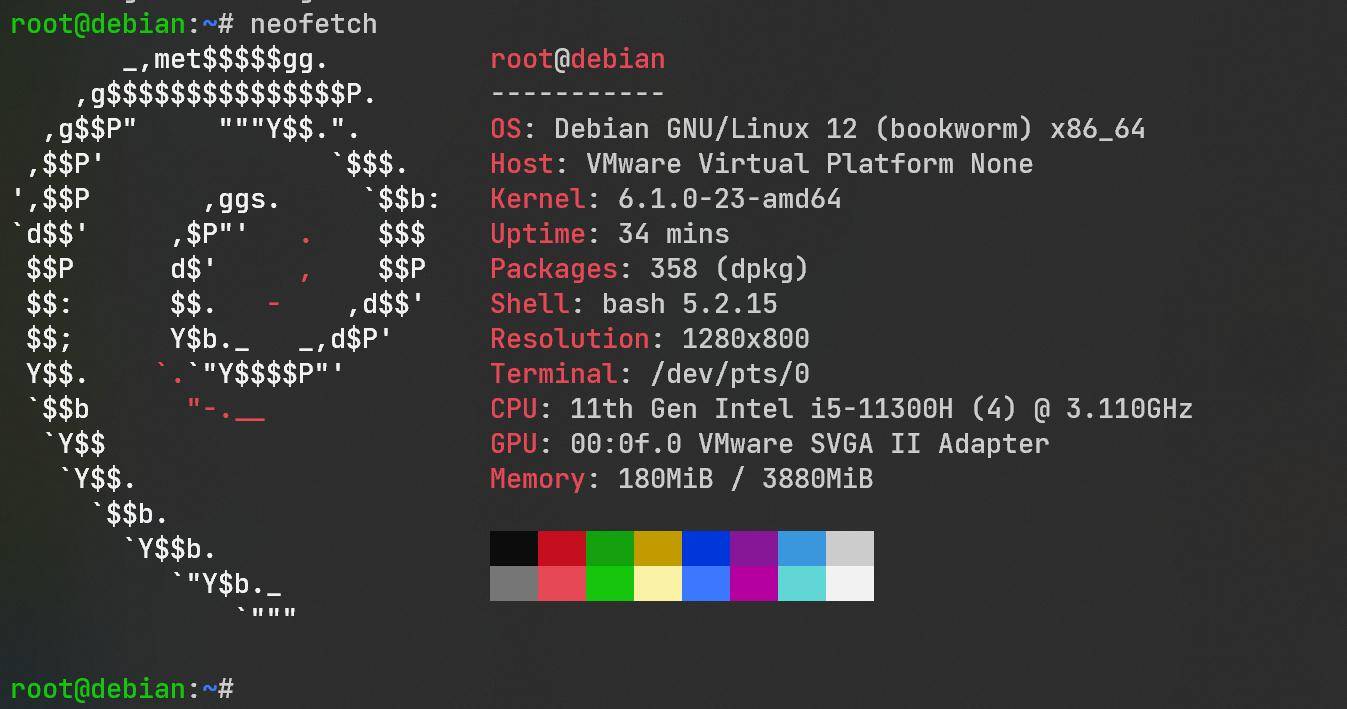
虚拟机文件需要自取 (VM17):
天翼云盘 https://cloud.189.cn/web/share?code=nimMNzEnIzYv
访问码:bk0c